Safe Android ↔ iPhone Data Transfer in 2026: chats, photos, 2FA, banking and work accounts
Switching between Android and iPhone is much easier than it was a few years ago, but the “easy” part mostly covers contacts, calendars, standard photos and basic settings. The real risks in 2026 are still the same: losing access to two-factor authentication, getting locked out of banking apps, and breaking work sign-ins because a new device is treated as untrusted. This guide focuses on those pain points and shows how to migrate cleanly, avoid common traps, and finish with a proper security sweep so the old phone doesn’t quietly stay logged in.
What transfers cleanly in 2026 and what still needs manual steps
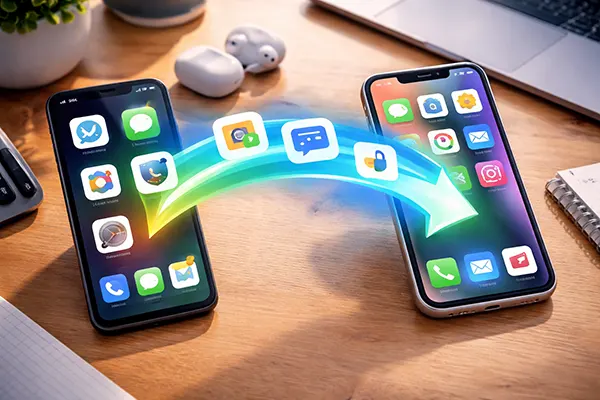
Most “everyday” data now transfers predictably during setup. Android-to-iPhone moves typically carry contacts, messages, photos/videos, email accounts and some app data through Apple’s Move to iOS flow, while iPhone-to-Android moves are handled by Google’s Android Switch guidance and device setup tools. The key is to treat these tools as the first pass, not the whole job: they’re great at bulk data, weaker on security-bound items that are tied to hardware keys or device trust.
Chats are the first area where expectations cause trouble. Some messengers are painless because they rely on cloud sync to rebuild history once you sign in, but others depend on a specific migration path and only work during initial setup. If you use WhatsApp, plan the transfer method before you touch the new phone’s setup screens, because the official cross-ecosystem move is tightly connected to the setup process and version requirements.
Anything that treats your phone as a “security token” is where manual steps remain unavoidable in 2026. Authenticator apps, passkeys, bank apps, corporate MDM profiles, and “trusted device” approvals for email or admin dashboards often need re-enrolment. Even if the data itself copies over, the app may refuse to work until it rebinds to the new device and you pass an extra identity check.
2FA, passkeys and banking: the items that bite hardest
Two-factor authentication can fail in three different ways: you lose the codes, you lose the account that issues the codes, or you lose the second step needed to restore the account. Before switching, export or back up what your authenticator supports, and collect recovery codes for the services that matter most (email, Apple ID/Google Account, banking, work). If your authenticator supports cloud backup, enable it while you still have the old phone in your hand, not after something breaks.
Passkeys in 2026 are generally safer and more convenient than SMS codes, but they’re still ecosystem-linked. If your passkeys are stored in iCloud Keychain on iPhone, you’ll need to ensure they’re synced and accessible before moving away; if they’re in Google Password Manager on Android, the same applies. The practical approach is to keep at least two working sign-in methods for critical accounts during the switch (for example: passkey plus a backup code, or passkey plus a hardware key) so you’re not trapped by one ecosystem’s sync boundaries.
Banking apps almost always require a “new device” activation, even if the app downloads normally. In 2026 many banks also bind approvals to a device registration, so plan a short window where you can receive verification via your old phone, a bank call centre, or an in-branch fallback if needed. The safest routine is: do not factory reset the old phone until the new phone can complete bank logins, approve a payment, and pass any in-app “device check” screens you may only see once a month.
Pre-migration checklist before you start the Android ↔ iPhone move
Start with backups you can verify. For photos, prefer a cloud library that you can open on a laptop and confirm by date ranges, not just a “backup completed” message. For device-to-device tools, make sure both phones are fully updated, charged, and on stable Wi-Fi, and use a cable transfer if your devices support it because it reduces the chance of mid-transfer timeouts and partial copies.
Next, lock down account recovery: generate or download recovery codes for your primary email accounts, password manager, and any account that gates everything else (Apple ID or Google Account). Update your password manager vault, confirm you know the master password, and make sure it is set to sync across devices. If you use SMS as a second factor anywhere, confirm your phone number is active and reachable, and avoid switching SIM/eSIM at the exact same time as you switch operating systems unless you’re forced to.
Finally, plan your SIM/eSIM steps. eSIM transfers are smoother in 2026, but carrier rules still vary. The low-risk sequence is: keep the old phone active until the new one can receive calls/SMS, then migrate eSIM, then re-test 2FA messages and banking confirmations. If you’re moving countries, changing carriers, or using a work eSIM profile, budget extra time because “it should just work” is where people lose access to 2FA at the worst possible moment.
Messenger and media prep that prevents nasty surprises
For messengers, do one boring but powerful thing: open each app and confirm the last backup time, then force a fresh backup or sync while you’re on stable Wi-Fi. If an app offers an “export chat” option, use it for any conversation that would be painful to lose (family history, contracts, work threads). This isn’t overkill: cross-ecosystem transfers can succeed but still skip attachments, voice notes, or older media if storage permissions or battery optimisation interrupts the process.
For photos and videos, decide whether you want a mirrored library in the cloud (easy) or a clean cutover (tidier). Mirrored libraries often create duplicates when you combine device transfer with cloud sync, because you may import a full camera roll and then cloud sync re-downloads the same assets with slightly different metadata. If you care about a clean library, temporarily pause auto-sync on one side, complete the transfer, then turn sync on and review duplicates by date and size.
For notes, don’t assume they’re “just on the phone”. In 2026, missing notes are usually a sync setting issue: the old phone stored notes in an account you didn’t re-add (for example, an email account), or the new phone defaulted to a different notes store. Before switching, check where notes live, export anything critical (PDF or text), and verify that the same account is enabled on the new device for notes syncing.
Typical mistakes in 2026: 2FA lockouts, duplicate photos and “missing” data
The most common failure is losing access to 2FA right after moving. It happens when people wipe the old phone too early, assume SMS will be enough, or forget that the authenticator was the only working second factor for a work account. The fix is prevention: keep the old phone powered and connected until you’ve successfully signed into your primary email, your work identity, and at least one critical service that requires a second factor.
Duplicate photos are the second classic. They appear when you transfer photos during setup and also have Google Photos or iCloud Photos syncing the same items in parallel. Duplicates look harmless, but they burn storage, slow indexing, and make backups heavier. The practical prevention is to choose one “source of truth” for the first week: either rely on cloud sync and skip bulk importing, or do a one-time transfer and keep cloud sync paused until you’ve confirmed the library structure on the new phone.
The third headache is “my apps are here but I’m logged out of everything”. That is normal: many apps do not migrate sessions for security reasons, and some tokens are device-bound. Expect to re-authenticate for banking, work email, admin tools, and any app that handles payments or sensitive content. What you can do is reduce friction by having passwords in a synced password manager, keeping recovery codes accessible offline, and doing the move when you can receive verification codes reliably.
Work accounts and managed devices: what changes across ecosystems
If your phone is enrolled in a company management system (MDM), treat the switch as an IT process, not a personal one. Work profiles, compliance checks, device certificates and VPN configurations often don’t “transfer”; they are re-issued for a new device. In practice, that means you may need your IT team to approve the new phone, reset MFA factors, or re-register your device in the company portal/app used for enrolment.
Corporate email and chat tools often add another layer: conditional access. In 2026, many organisations require a compliant device plus an approved authenticator method before you can read email or open files. The safe move is to set up the new device while the old one still works, so you can approve sign-ins, confirm device registration, and avoid being locked out of both devices at once.
Also watch out for “silent” work data: calendars, contacts, and notes that came from a corporate account can disappear if you forget to add that account back, or if policy blocks syncing until enrolment is complete. After the switch, compare the old and new phones for: number of calendars, recent meeting invites, corporate contacts, and access to shared drives. If something is missing, it’s usually account configuration or compliance status, not lost data.
Post-migration security and sanity checks (so the old phone keeps no access)
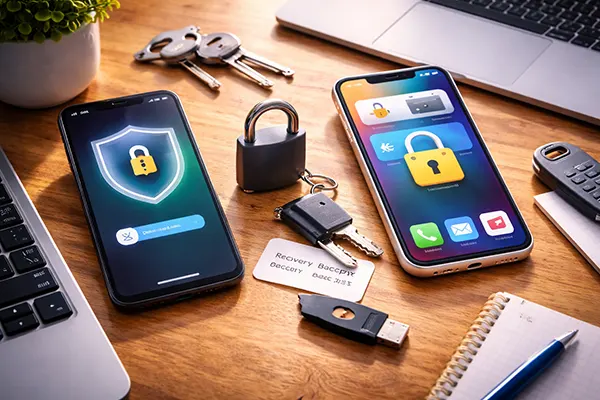
After the move, do a structured check rather than trusting the first impression. Sign into your primary email accounts, open your password manager, and verify you can pass 2FA on at least two different services. Then test the basics you only notice later: sending a photo in your main messenger, receiving an SMS verification, approving a banking action, and restoring a note from sync. If any of these fail, fix them before you wipe the old phone.
Next, clean up sessions. Many services let you view active devices and revoke sessions remotely. Do it for your email provider, social accounts, and any financial apps. The goal is simple: if you lose the old phone tomorrow, you don’t want it to remain a trusted device that can open your inbox or approve sign-ins. This step matters even if you plan to keep the old phone in a drawer, because “drawer security” fails the first time you lend the device to a family member or it’s stolen during travel.
Only when everything is confirmed should you reset or sell the old phone. Before wiping, disable device-based security features properly (remove eSIM if required by your carrier, turn off theft protections where relevant, sign out of primary accounts, and remove the device from account dashboards). A clean sign-out and device removal reduces the risk of account confusion later, especially with Apple ID/Google Account device lists that can affect account recovery.
A quick final checklist you can run in 10 minutes
Check communications: calls, SMS, and your main messenger all work on the new phone, and you can receive a verification code without touching the old phone. If you use WhatsApp or a similar service, confirm recent messages and media are visible and searchable, not just “partially there”.
Check security: your authenticator codes are present (or restored), you have recovery codes stored safely, and you’ve tested at least one account sign-in end-to-end with 2FA on the new device. If you use passkeys, confirm they actually work on the new phone for one real login, not just that “sync is enabled”.
Check clean-up: revoke old sessions where possible, remove the old device from key account dashboards, and confirm work enrolment is compliant if you have a managed device. When those three boxes are ticked, wiping the old phone becomes a safe, final step rather than a gamble.