KDE Connect for Android: How to Control Your Computer and Sync Notifications in 2026
KDE Connect makes it possible to use an Android smartphone as a wireless companion to a Windows, Linux or macOS computer. Instead of repeatedly switching between screens, you can check phone notifications on your desktop, transfer photographs and documents, control music, navigate presentations and even use your smartphone as a wireless mouse. The application is free, open-source and designed to communicate over a local network rather than relying on a separate cloud account. In 2026, KDE Connect remains a practical option for people who regularly work across several devices but want more control over how those devices interact. Understanding its installation process, permissions and everyday features helps you create a more convenient working environment without purchasing additional equipment or subscribing to another service.
What KDE Connect Does and How to Set It Up on Android
KDE Connect is developed by the KDE community, which also maintains the KDE Plasma desktop environment and numerous open-source applications. Despite its association with Linux, KDE Connect is not restricted to Linux computers. Official desktop software is available for Windows, while macOS support is also part of the wider project, although installation methods and feature availability can differ. Its Android application connects smartphones and tablets to compatible computers through an existing local network. Once the devices are paired, they can exchange information and respond to commands without requiring a USB cable. The software uses encrypted connections between paired devices, helping protect transferred information while it travels across the network.
One advantage of KDE Connect is that its individual functions can be enabled or disabled according to personal requirements. Someone working with photographs might primarily use wireless file transfers, while an office employee could benefit more from desktop notifications, shared clipboard content and presentation controls. The application also provides a virtual touchpad, multimedia controls, battery information and tools for locating a misplaced smartphone. These functions are organised into separate features, commonly called plugins, which can be managed for each connected device. Consequently, users do not need to activate every available permission simply to send a file or control playback.
KDE Connect differs from conventional remote desktop applications because it does not normally reproduce the computer’s entire screen on an Android device. Its purpose is to provide specific controls and exchange information between devices. You can move the mouse pointer, enter text, pause media and execute commands that have been configured on your computer, but it is not a complete replacement for software designed to display and operate a remote desktop. Another important distinction is its network requirements. KDE Connect normally expects devices to communicate over the same local network, so it cannot automatically control a home computer from an unrelated mobile connection. This makes it particularly suitable for home offices, classrooms and shared workspaces where devices regularly use the same Wi-Fi network.
Installing KDE Connect and Pairing Your Smartphone With a Computer
To begin, install KDE Connect on your Android smartphone from Google Play or F-Droid. Both are recognised distribution sources for the application, and the official project website at https://kdeconnect.kde.org/ provides links to supported downloads. You must also install the corresponding desktop application. Windows users can obtain KDE Connect through the Microsoft Store or an official installer, while Linux users can generally install it using their distribution’s software manager. On KDE Plasma desktops, some integration components may already be available. macOS users should consult the current KDE download information because installation and integration may be less straightforward than on Windows or Linux. After installation, launch KDE Connect on both devices and connect them to the same local network.
Open the Android application and check the list of available devices. If your computer appears, select it and choose the option to request pairing. A pairing request should then appear on the computer, where you can accept the connection. Depending on the installed version and device interface, the pairing request may also be initiated from the desktop application. Once both devices recognise the pairing, KDE Connect displays the functions supported by that connection. Pairing establishes an authorised relationship between the devices, so you do not normally need to repeat the process every time they reconnect to the same network. It is sensible to confirm the device name before accepting a request, especially when using a network shared with other people.
If the computer does not appear, first confirm that both devices are connected to the same local network and that KDE Connect is running on each. Some routers separate wireless clients, while public and guest networks may prevent devices from communicating directly. A firewall can also interfere with device discovery or pairing. KDE Connect commonly uses TCP and UDP ports 1714–1764, so the relevant network rules may need adjustment if the connection remains unavailable. VPN applications can create additional complications by changing how local network traffic is handled. Before modifying firewall settings, try a trusted home network and temporarily disconnect any VPN that may be blocking local discovery. Once pairing succeeds, review the available features and grant only the Android permissions needed for the functions you intend to use.
Controlling Your Computer and Synchronising Android Notifications
One of KDE Connect’s most useful features is Remote Input, which transforms the Android touchscreen into a wireless touchpad. After pairing, open the Remote Input function on your smartphone and move a finger across the screen to control the computer’s mouse pointer. Touch gestures can perform mouse clicks, while supported scrolling controls make it easier to navigate documents and web pages. The function is particularly convenient when a computer is connected to a television, a presentation is displayed on a projector or the keyboard and mouse are temporarily out of reach. Text input is also supported, allowing the smartphone to act as an alternative keyboard for certain tasks. However, the exact keyboard behaviour can depend on the Android version, desktop operating system and available permissions.
KDE Connect also includes multimedia controls for compatible applications. When supported media playback is detected on the computer, the smartphone can display controls for pausing, resuming or skipping tracks and adjusting playback volume. This is useful when listening to music through desktop speakers while moving around a room. The presentation remote offers a related function for people delivering slideshows. Instead of remaining beside a keyboard, you can advance or return to slides using the phone, provided the presentation application responds to the supported controls. For more personalised actions, KDE Connect provides a Run Commands feature that allows users to trigger commands previously configured on their computers. Such commands might lock the desktop or launch a particular programme, although they must be configured carefully because they execute actions on the computer.
Notification synchronisation reduces the need to repeatedly unlock a smartphone while working. With the necessary Android notification access enabled, KDE Connect can forward supported phone notifications to the computer. Incoming calls, messages and alerts from selected applications may then appear in the desktop’s notification system. This allows you to notice an important message without interrupting work to check another screen. The application can also provide actions associated with some notifications, including replies where supported by the original Android application. Nevertheless, notification synchronisation does not guarantee that every application will offer identical interactive features. Android privacy restrictions, manufacturer-specific software and the notification actions supplied by individual applications can all affect what appears on the desktop.
Managing Messages, Clipboard Sharing and Wireless File Transfers
To configure notifications, open KDE Connect on Android, select the paired computer and locate the Notification Sync feature. Android should direct you to the system settings where notification access can be granted. This permission allows KDE Connect to read notifications for synchronisation, so consider whether personal messages or confidential information might become visible on a shared computer. Depending on the available settings, you can restrict which applications forward notifications rather than allowing every alert to appear. Desktop notification settings may also influence how messages are displayed. If notifications stop arriving, check that the relevant feature remains enabled and that Android has not restricted the application from operating in the background. Battery-saving rules are especially relevant on smartphones whose manufacturers aggressively limit background applications.
KDE Connect supports communication-related functions beyond simply displaying alerts. Its desktop software includes SMS integration, allowing compatible Android devices to provide access to text conversations and support sending or replying to SMS and MMS messages. Availability depends on Android permissions, the installed software and the capabilities of the connected device. These functions should not be confused with universal access to conversations from WhatsApp, Telegram or every other messaging service. For third-party applications, KDE Connect generally relies on the notification actions that Android makes available. Clipboard sharing provides another useful connection between devices. You can copy text on one device and transfer it to another, avoiding the need to send short notes or web addresses through email. Because modern Android versions restrict background clipboard access, automatic synchronisation may be limited, and manual clipboard-sharing actions may be necessary.
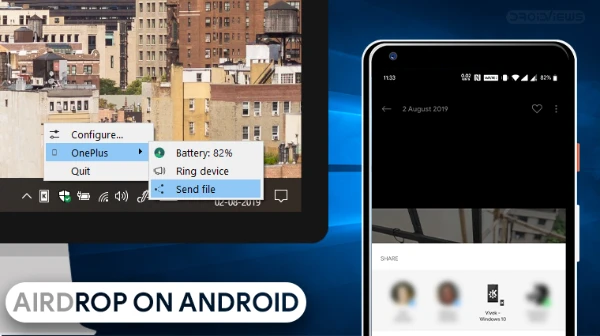
Wireless file transfers are particularly helpful when moving photographs, screenshots, PDF documents or other everyday files between a smartphone and computer. On Android, open a file in a compatible application, select the system Share option and choose KDE Connect as the destination. The paired computer can then receive the transferred file through its configured receiving location. Files can also be sent from the computer to Android using the desktop application’s sharing functions. Depending on the operating system and enabled features, browsing selected files on the phone from the computer may also be possible. Transfer speed depends on the local network, device performance and file size rather than a guaranteed fixed rate. For large collections of photographs, a stable Wi-Fi connection is preferable. KDE Connect transfers are convenient, but important files should still be backed up separately because transferring a file does not automatically create a reliable backup system.
KDE Connect in Everyday Use: Security, Limitations and Troubleshooting
KDE Connect can simplify several ordinary activities without requiring users to change their preferred operating system. A student preparing a presentation might transfer a PDF from an Android tablet to a laptop, use the phone to advance slides and receive important call notifications while presenting. Someone working from home could copy a web address from a smartphone, paste it into a desktop browser and transfer a photograph directly into a project folder. A computer connected to a television can be controlled from the sofa using the Android touchpad and multimedia controls. KDE Connect can also display information about a connected smartphone’s battery and provide a function to make the phone ring when it has been misplaced nearby. These conveniences are most effective when the devices remain connected to a stable local network.
Security deserves attention because KDE Connect creates a trusted communication channel between devices. The project uses TLS encryption to protect communications, and pairing is intended to prevent unauthorised devices from accessing its features. According to the project’s Android documentation, its normal communication takes place directly between devices over the local network rather than transferring personal content through KDE-operated servers. Nevertheless, encryption does not eliminate every privacy concern. A person who can access an unlocked computer may be able to read synchronised notifications, while enabled clipboard sharing could expose copied information. Remote commands also deserve particular care because they can perform computer actions without using the physical keyboard. For these reasons, it is advisable to pair only personal or trusted devices, disable unnecessary features and remove pairing relationships when a computer or smartphone changes ownership.
KDE Connect is not completely identical across Windows, Linux, macOS and Android. Linux desktops, particularly KDE Plasma, generally offer the closest integration with the project’s wider software environment. Windows supports the principal desktop application, but individual functions can depend on system notifications, firewall configuration and other operating-system behaviour. On macOS, installation and compatibility should be checked against the current project documentation before assuming every feature is available. Android manufacturers also differ in their permission controls and background battery management. A feature that functions immediately on one smartphone may require additional settings on another. Maintaining reasonably up-to-date versions of KDE Connect on both devices helps minimise compatibility problems, particularly when newer Android releases introduce changes to permissions or background operations.
Fixing Connection Problems and Getting the Most From KDE Connect in 2026
When KDE Connect unexpectedly disconnects, begin with the simplest checks. Confirm that the smartphone and computer remain connected to the same local network, that both applications are running and that the paired devices are still recognised. Switching between mobile data and Wi-Fi can interrupt communication, while a computer entering sleep mode will normally become unavailable until it wakes. If the connection repeatedly disappears after the smartphone screen is switched off, inspect Android’s battery settings and allow KDE Connect to operate in the background where appropriate. Some Android interfaces describe this setting as unrestricted battery usage, background activity or an application-specific power management exception. The wording varies between manufacturers, and enabling unrestricted activity may slightly increase battery consumption.
Problems affecting individual functions should be investigated separately from general pairing failures. If files transfer successfully but notifications do not appear, the network connection is probably working, so notification permissions and filtering settings deserve attention first. If the remote touchpad does not respond, check whether Remote Input is enabled and whether the desktop environment permits simulated keyboard and mouse actions. When clipboard sharing fails, consider Android’s restrictions on background clipboard access instead of repeatedly reinstalling the application. On restricted office or university networks, local device discovery may be blocked even when both devices have internet access. KDE Connect also supports manually adding devices by IP address in suitable configurations, although this will not overcome every firewall or network isolation rule. Avoid disabling important security protections merely to establish a connection.
For regular use, the most effective approach is to enable a small selection of functions that genuinely improve your routine. Notification synchronisation, wireless transfers, clipboard sharing and multimedia controls cover many common requirements, while Remote Input and presentation controls are useful for more specific situations. Review permissions occasionally, particularly after Android system updates, and use the application’s settings to limit unnecessary access. The official KDE Connect website, its KDE Applications listing and its Android distribution pages remain useful sources for installation information and changes introduced in newer versions. As of 2026, KDE Connect offers a flexible way to connect Android devices with desktop computers while retaining local control over everyday tasks. Its main strengths are convenience, customisation and direct device communication, provided users understand that functionality and reliability depend on their operating systems, permissions and network configuration.